Quick fixes for analysis issues
Resolving diagnostics with a single click

If you’re like me, too much of your development time is spent fixing problems (diagnostics) the analyzer finds. If you’ve ever wished it could be easier, then I have some good news for you. Many of the diagnostics the analyzer produces can be fixed automatically using quick fixes.
A quick fix is an automated edit targeted at fixing the issue reported by a specific diagnostic. In the Dart diagnostic messages article, we looked at the following code:
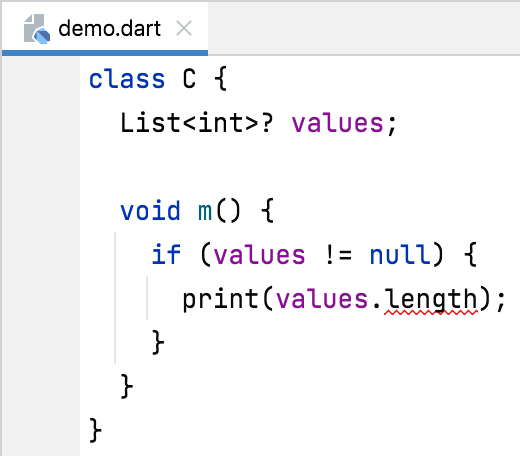
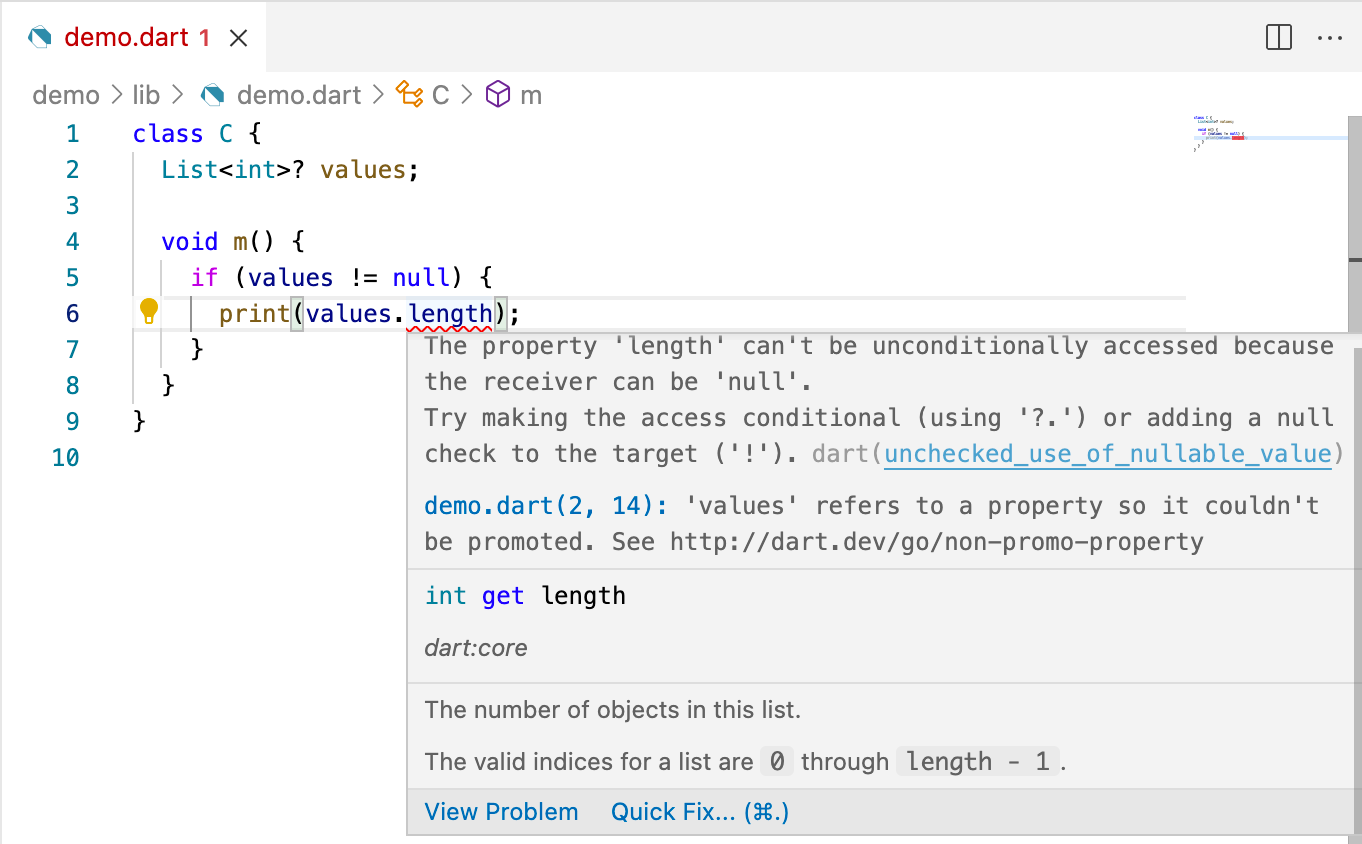
The correction message suggests two ways of resolving the problem: “Try making the access conditional (using ‘?.’) or adding a null check to the target (‘!’).”
If you click in the highlighted region (the area with the red squiggly underline), you’ll see a light bulb icon near the left edge of the editor. If you hover over it, you can then click to open a menu containing the available quick fixes.
Both of the suggested corrections are available from the menu. Selecting one applies the change to your code. For example, if you select the first fix, it updates the code to the following:
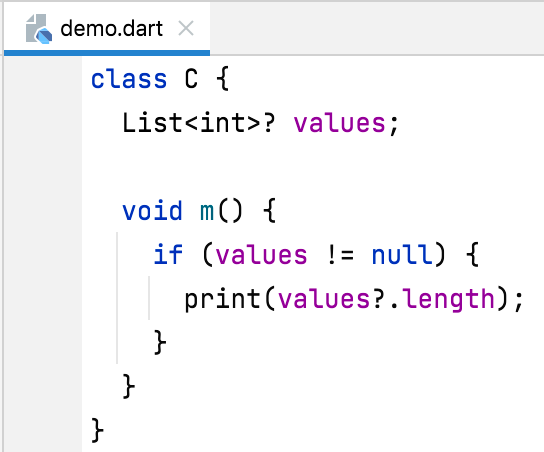
Let’s first take a quick look at how to apply a fix in both IntelliJ IDEA and Visual Studio Code, then look at a more powerful example of what quick fixes can do.
IntelliJ IDEA
#The context actions menu in the editor looks like the following:
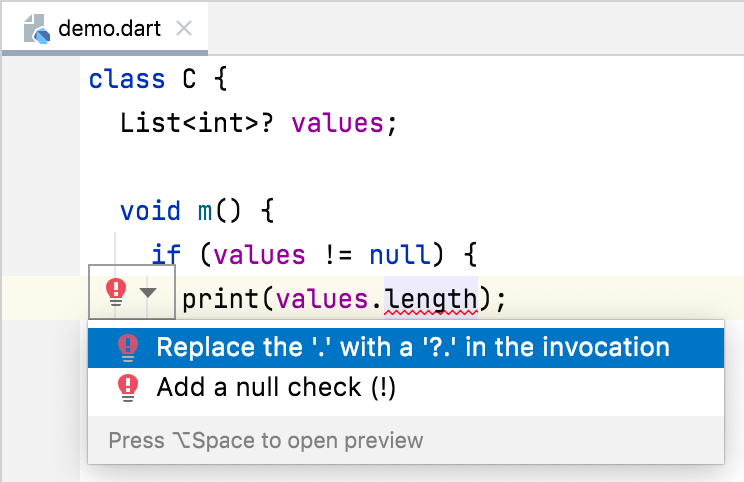
You can access the same list by selecting “Show Context Actions” from the context menu in the editor or by using its keyboard equivalent (Alt+Enter on Windows and Linux, or Option+Enter on macOS).
You can also invoke these fixes directly from the hover text when you hover over the highlighted region. If there are too many fixes, there’s a More Actions item also opens the menu:
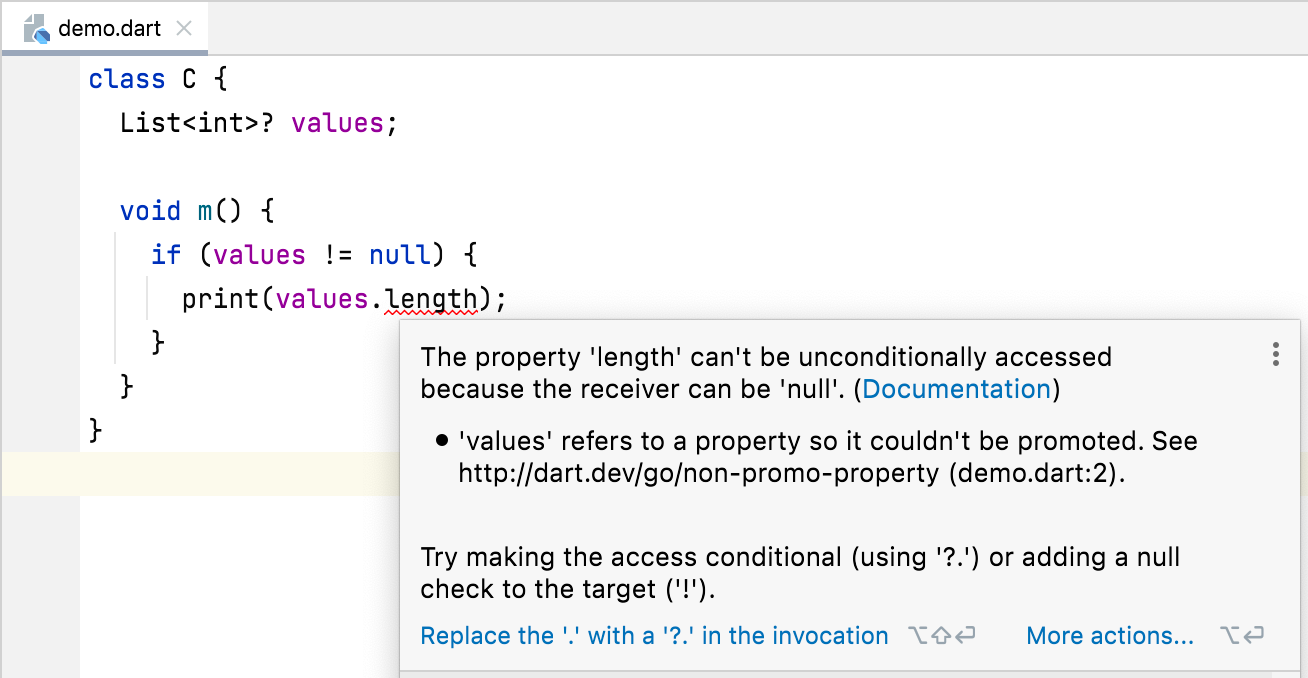
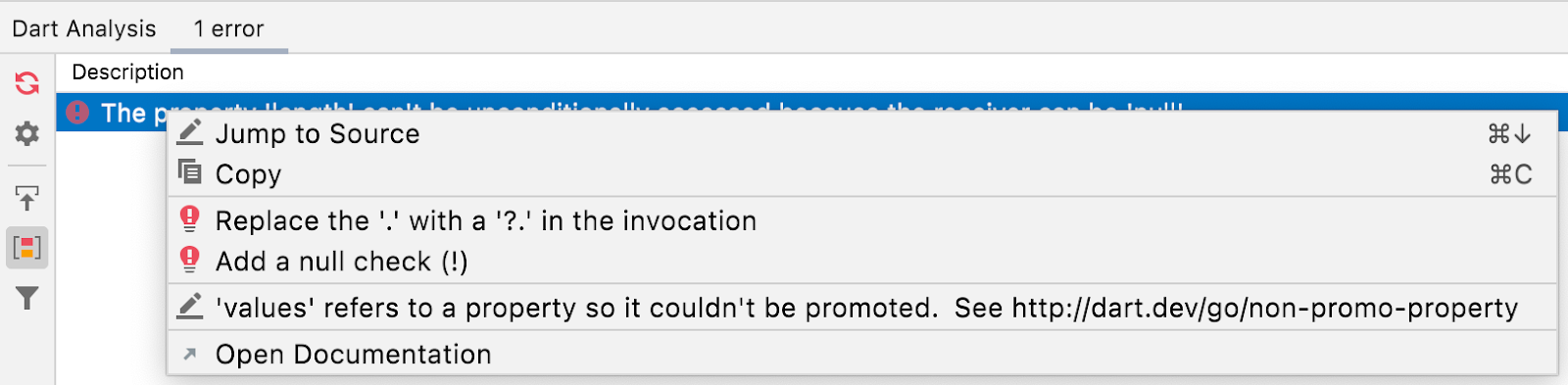
If that’s not enough, you can also invoke the available fixes from the context menu in the Dart Analysis view:
Visual Studio Code
#The code actions menu in the editor looks like the following:
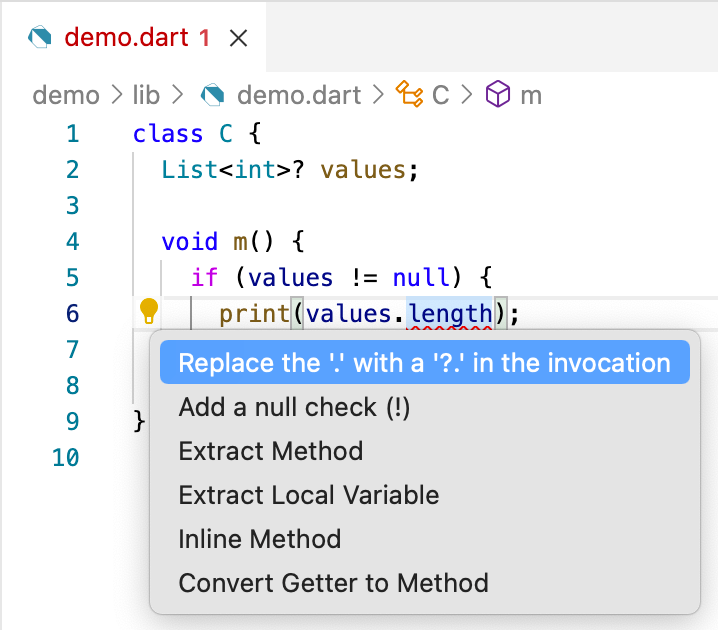
The first two items are the quick fixes, the others are refactorings. You can access the same list by using its keyboard equivalent (Control+. on Windows and Linux, or Command+. on MacOS), or by selecting Quick Fix … from the hover text in the editor:
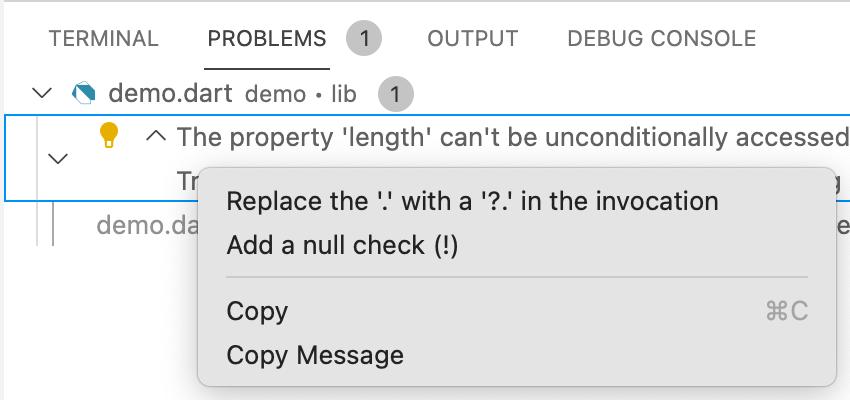
You can also invoke them from the context menu in the Problems panel:
Another example
#While the fix above saves you the time and effort of finding the correction message and then making the edit by hand, adding a single character is admittedly not a huge time-saver. However, some fixes provide a bigger productivity boost. Consider the following code:
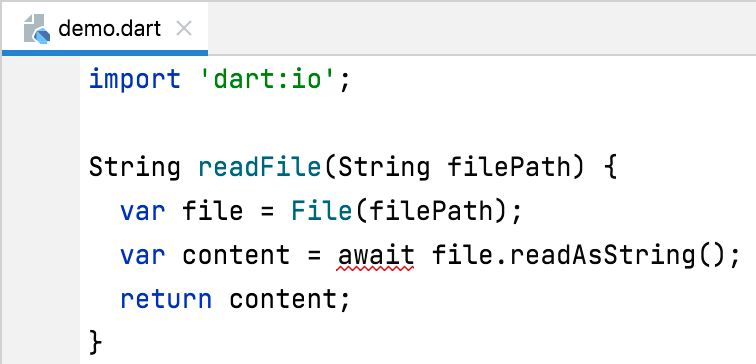
The diagnostic tells you that “the await expression can only be used in an async function.” Assuming that you don’t want to use synchronous I/O, the correction is to mark the body of the function with the
async keyword. Doing that causes another error telling you that the return type of the method needs to be
Future, so you’ll also end up updating the return type.
Fortunately, there’s a quick fix for the original problem:
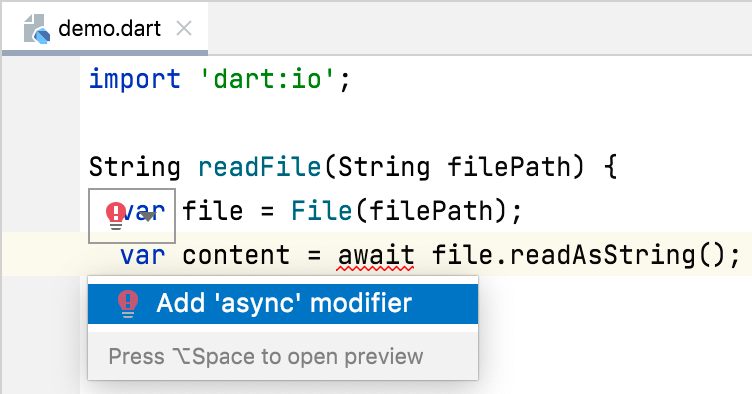
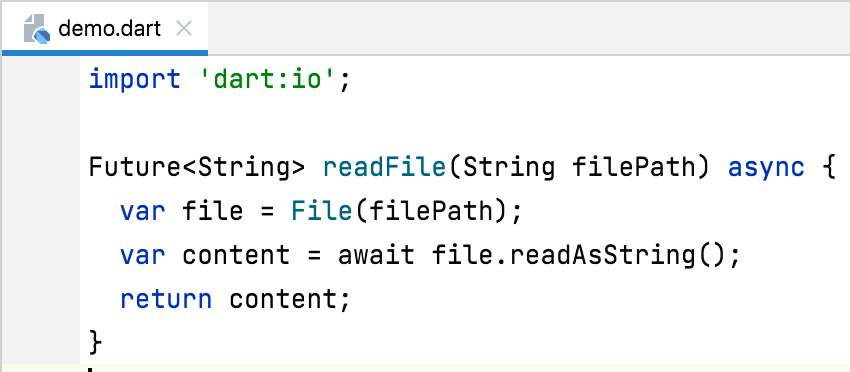
Selecting this fix not only adds the modifier, but also updates the return type, allowing you to fix the problem in one step:
Summary
#Not every problem can be fixed automatically, and there isn’t a quick fix for every problem that could have one. Nevertheless, it’s definitely worth checking to see whether there’s an available quick fix the next time you have a diagnostic to fix. And if you don’t see a fix for a diagnostic that ought to have one, please let us know by creating a dart-lang/sdk issue.
More from Dart

Google Summer of Code 2026 results
Today, we spotlight the projects and results from contributors mentored by Dart and Flutter in Google Summer of Code 2026.


Dart in Google Summer of Code 2026
We’re excited to announce that the Dart project will mentor contributors for the seventh time in Google Summer of Code 2026!